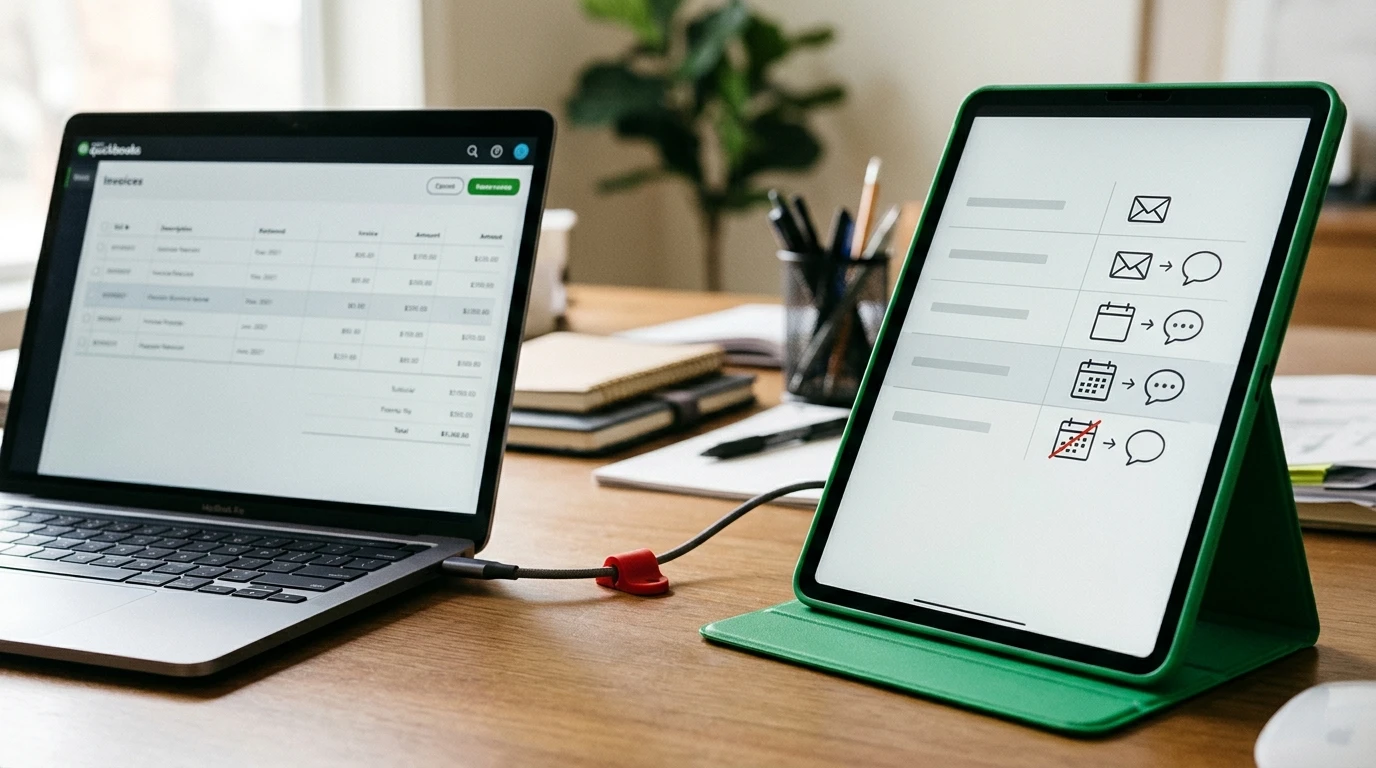
Chasing overdue invoices with another “just following up” email gets old. QuickBooks Accounts Receivable handles the ledger and routine invoice reminders. Keep follow-up there when exceptions are manageable. Add collections software when ignored emails and broken payment promises require ongoing action, while keeping QuickBooks as your accounting record.
What should collections software add to QuickBooks?
QuickBooks records what customers owe. Collections software manages the work of getting that money paid. The overlap is invoice reminders, which makes the products look more interchangeable than they are.
Choose accounts receivable collection software against the work that remains after an invoice reminder goes out. An agency whose clients pay after a reminder has a different problem from a freelancer whose client keeps replying, “We’ll pay Friday.”
Before comparing products, define your requirements:
| Selection criterion | What you need to establish |
|---|---|
| Accounting connection | Which invoices, balances and payment updates move between the systems, and in which direction? |
| Follow-up depth | Does the tool send scheduled reminders, or also handle replies and promised payment dates? |
| Customer channels | Do your clients respond to email, WhatsApp or another supported channel? |
| Exception handling | What happens when a customer disputes an invoice, pays part of it or requests a payment plan? |
| Ownership and control | Who approves escalation, resolves disputes and checks that follow-up has stopped appropriately? |
| Total operating cost | Which plan includes the required workflow, and what additional user, messaging or implementation charges apply? |
We recommend choosing around the exception you handle repeatedly, rather than the longest feature list. If you need a broader replacement for your accounting stack, compare accounts receivable software for small businesses before narrowing the decision to a QuickBooks add-on.
Which QuickBooks accounts receivable setup fits your workload?
The useful comparison is QuickBooks alone versus QuickBooks with a collections layer. The options below serve different levels of follow-up complexity.
Plan details and listed prices from the linked product pages are as of November 2026. This comparison focuses on QuickBooks Online. Do not assume the same integrations work with Desktop.
| Option and relevant plan | What it contributes | Best fit and trade-off |
|---|---|---|
| QuickBooks Online native workflow | Invoice accounting, customer balances, aging reports and invoice reminders | Fits owner-managed follow-up. Someone still needs to handle payment conversations and exceptions. |
| Paidnice Essentials or Pro | Paidnice Essentials costs $69/month, billed monthly, with up to 150 invoices monitored monthly. Pro starts at $99/month, billed monthly, with up to 300 invoices monthly, and includes payment plans. | Fits businesses wanting policy-based reminders and payment options. Choose the tier around the workflow and invoice allowance. |
| Chaser Compact | Chaser Compact includes 4 users, 30 follow-up templates and 4 automated receivables workflows. | Fits a small team needing structured chasing. Its workflow allowance matters if different client groups need different treatment. |
| Upflow Starter | Upflow’s entry paid collections tier uses quote-based pricing and includes two-way Gmail or Outlook integration, collection analytics and multichannel reminders. | Fits businesses building a shared collections operation. Its free Discover offer focuses on AR visibility, rather than replacing the paid collections workflow. |
| Kolleno Business Plus | Kolleno Business Plus lists workflow automation, team collaboration and collections inbox management at $1,245 per user per month, billed monthly, with a 2-user minimum. | Fits a finance team needing coordinated collections work. The per-user cost makes it a different purchase from a lightweight reminder tool. |
| Bump | QuickBooks syncing, email and WhatsApp follow-up, reply reading, payment-promise and plan tracking | Fits freelancers, agencies and small businesses wanting less manual chasing. It serves the collections role alongside your accounting software. |
QuickBooks alone: when reminders usually resolve the problem
Stay with the native workflow if your main task is sending invoices and nudging customers who forgot to pay. You avoid another system to configure, while keeping customer balances close to the underlying accounting transactions.
Skip an add-on for now if the real problem is inaccurate bookkeeping. A duplicate invoice or an unapplied payment needs correction before any collections tool starts chasing it.
Paidnice: when you want consistent reminder policies
Paidnice suits businesses that want repeatable reminder rules, statements and a customer payment portal. Its pricing also makes invoice volume a concrete selection factor.
Choose Essentials for the narrower reminder workflow. Choose Pro when payment plans or its additional configuration options are part of your requirement, rather than assuming those capabilities come with the entry plan.
Chaser: when a small team needs defined chasing workflows
Chaser Compact gives a small team a bounded set of automated workflows and templates. That makes it worth considering when different customers need different reminder sequences.
Map your customer groups before choosing the plan. If each group needs its own workflow, check that the Compact allowance covers the way you actually collect.
Upflow: when collections becomes shared finance work
Upflow fits a business that wants collection activity connected to team email and reporting. Its entry paid tier is more relevant to this decision than its free analytics offer.
Skip a full collections deployment if you only need occasional reminders. A shared collection operation needs someone to own assignments and deal with the exceptions the software surfaces.
Kolleno: when coordination matters enough to justify the cost
Kolleno Business Plus suits teams that need workflow automation alongside a collections inbox and collaboration. Its Business Pay plan focuses more narrowly on payment access and inbox management, so the plan names are not interchangeable.
We would rule out Business Plus for a solo business seeking basic reminders unless its broader workflow solves a substantial operational problem. The user minimum and per-user charge belong in that decision.
Bump: when replies and missed promises create the work
Bump is our product. It syncs with QuickBooks, chases overdue invoices through email and WhatsApp, reads replies, and tracks payment promises and plans within user-defined escalation guardrails.
Choose it when you want to reduce repeated manual chasing without hiring collections staff. Choose a different category of tool if your main requirement is a replacement general ledger or a dedicated payment portal.
Choose around the work that still needs a person
An add-on earns its place when it removes a recurring collection task you would otherwise carry. Sending more reminders has limited value if you still maintain a separate list of who promised to pay and when.
Say your agency has accurate invoices, but clients respond with payment dates that keep slipping. The scorecard below compares workflow coverage for that situation. “Meets” means the stated capability covers the task, while “Owner” means a person carries it. The empty column is for another option you are evaluating.
| Requirement | QuickBooks alone | QuickBooks + Bump | Your option |
|---|---|---|---|
| Maintain invoice accounting and AR balances | Meets | Meets through QuickBooks | |
| Send overdue email follow-up | Meets | Meets through Bump | |
| Read replies and track payment promises | Owner | Meets through Bump | |
| Chase through email and WhatsApp | Owner manages the additional channel | Meets through Bump | |
| Track agreed payment plans during collection | Owner | Meets through Bump |
If owner-managed work is manageable, an invoice tracking spreadsheet for client payments can hold promise dates alongside your QuickBooks records. Someone must keep it current, particularly after a partial payment or revised agreement.
Before committing to any add-on, ask the provider to demonstrate your awkward cases using sample records: a disputed invoice, a partial payment and a missed promise. Do not treat “integrates with QuickBooks” as proof that every exception is handled. Ask what updates automatically, what requires approval and what remains your responsibility.
How to keep QuickBooks balances and follow-ups aligned
Accounts receivable is the unpaid amount customers owe on credit sales. In an accrual accounting workflow, an invoice increases receivables, and applying a customer payment reduces the outstanding balance.
Collections automation needs that balance to be trustworthy. Your accounts receivable process should name who corrects accounting errors and who handles customer disputes before either task reaches an automated queue.
Use this order when preparing QuickBooks for follow-up:
- Check the invoice and customer. Confirm the recipient, due date and payment instructions. Use an invoice for a sale paid later. A sales receipt records an immediate-payment sale without leaving an unpaid invoice to chase.
- Apply payments to the correct invoice. Record customer payments against the relevant open invoice. When reviewing downloaded bank transactions, match existing records where appropriate so you do not record the same receipt twice.
- Run an aging report. In QuickBooks Online, search Reports for Accounts Receivable Aging Summary or Accounts Receivable Aging Detail, with report availability depending on your subscription. The summary identifies customer-level exposure, while the detail helps identify the specific invoices behind it.
- Resolve misleading open balances. Investigate unapplied payments, available credits and duplicate transactions before contacting customers. An old balance can reflect a posting problem rather than nonpayment.
- Test the handoff to collections. Confirm that imported invoices, due dates and remaining balances agree. Apply a sample payment and check what happens to the next scheduled follow-up before enabling the wider workflow.
When using a QuickBooks accounts receivable aging report, keep its reporting date and accounting basis consistent with the records you are reviewing. For a balance-sheet comparison, also check that both reports use the same filters.
A customer statement can help explain several outstanding transactions. An aging report helps you prioritize them. Neither tells you, by itself, whether the customer has disputed the work or promised payment next week.
Frequently Asked Questions
Can I use collections software with QuickBooks Desktop?
Only if the provider supports your specific Desktop setup. An integration labelled “QuickBooks” should not be treated as confirmation of Desktop compatibility, so establish the supported edition and connection method before buying.
Should I clear overdue receivables with a journal entry?
Only when the entry reflects a valid accounting adjustment approved by the person responsible for your books. First identify whether the balance comes from an unpaid invoice, an unapplied payment or a credit, because a general-ledger adjustment can leave customer-level records unresolved.
Does accounts receivable automation replace a bookkeeper?
No. Collections automation can reduce reminder work, but someone still needs to maintain accurate accounting records and approve adjustments. Assign those responsibilities explicitly so a customer dispute does not become an unattended bookkeeping task.
If your agency’s invoices are accurate but promised payment dates keep slipping, start by testing that exact handoff. Sign up for Bump to put email and WhatsApp chasing alongside QuickBooks, with reply reading and payment-promise tracking focused on the work you want off your plate.